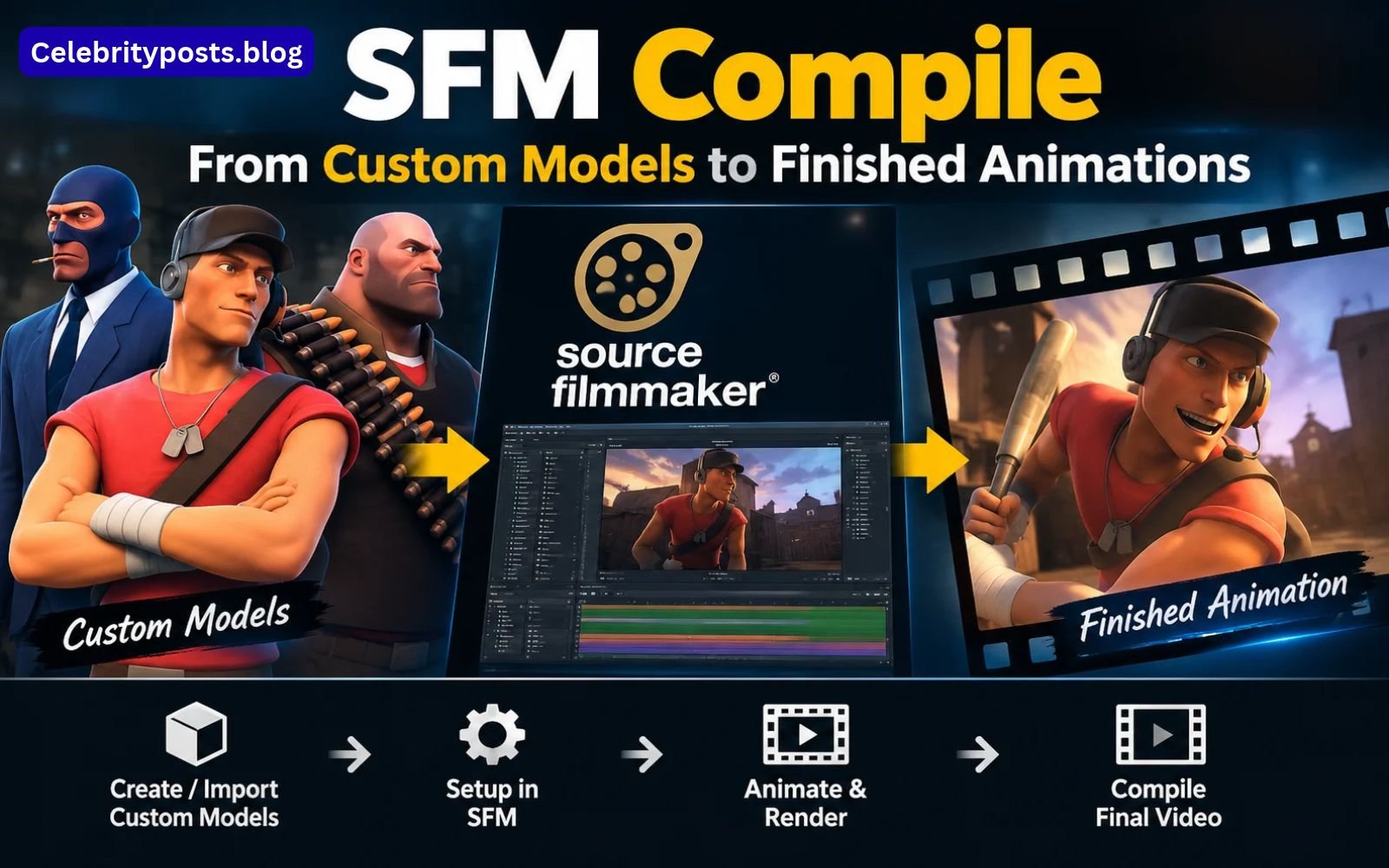
This is where SFM Compile becomes important. It generally refers to preparing and compiling custom models or related assets into formats that the Source engine can use. The process involves more than pressing a button. You need compatible exported files, correct material references, a properly written QC script, and a suitable compiler.
Understanding these elements helps you identify problems before they affect an entire project. It also makes it easier to reuse custom assets across scenes and maintain a consistent workflow.
In this guide, you will learn what SFM Compile means, which tools are commonly involved, how model compilation works, how to organize files, and how to troubleshoot frequent problems. You will also discover how compiling an asset differs from rendering a finished animation.
What Is SFM Compile?
SFM Compile is a term used for the process of converting or preparing custom assets for use in Source Filmmaker, commonly abbreviated as SFM.
Source Filmmaker uses Valve’s Source engine. Custom models created in applications such as Blender, Maya, or 3ds Max generally need to be exported into compatible intermediate formats and processed through the appropriate Source model compiler before SFM can load them.
A typical custom-model workflow looks like this:
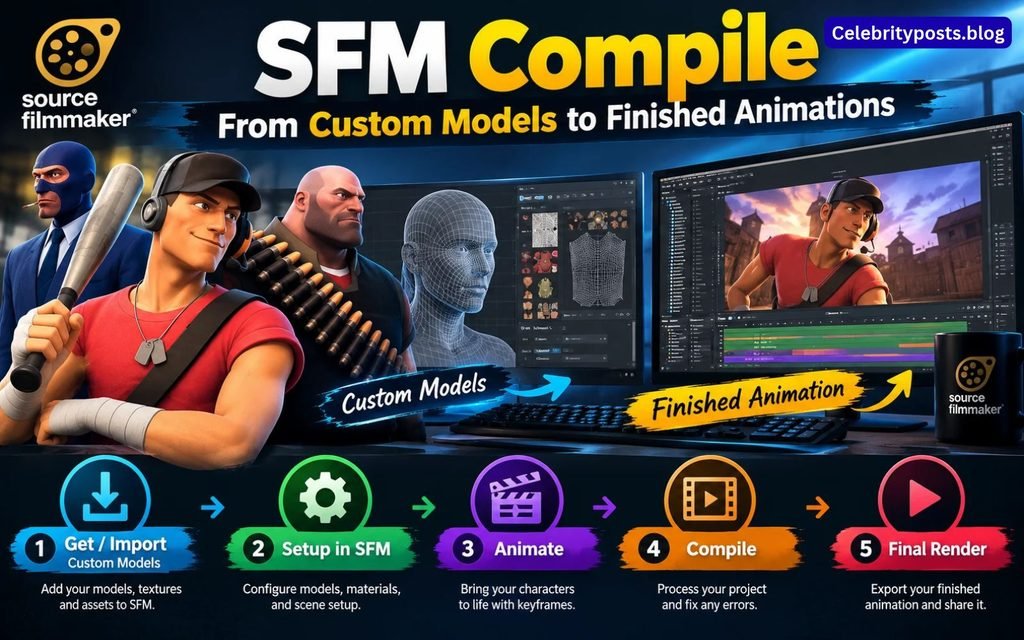
3D modeling software → SMD or DMX export → QC instructions → StudioMDL compilation → model installation → SFM testing
The exact steps depend on the asset, the software used to create it, and the Source engine branch being targeted. A static prop, an animated character, and a model with advanced facial expressions may require different configurations.
Compilation is not the same as creating the original model. Modeling produces the geometry, UV maps, materials, and possibly a skeleton. Compilation organizes and processes the exported data according to instructions in a QC file.
Valve’s StudioMDL documentation describes the tool as a compiler that converts intermediate model data into the MDL format used by the Source engine. The generated model may also require associated geometry and collision files.
Why Is SFM Compilation Necessary?
A model can look perfect in Blender but still fail to work in Source Filmmaker. This happens because different applications use different file formats, material systems, skeleton conventions, and asset-loading rules.
For example, a Blender project may contain a detailed character, several materials, and a complete animation rig. SFM does not automatically interpret every part of that project file. The model must be exported and prepared in a format supported by the target engine.
Compilation helps connect the exported asset data with the instructions needed by Source. Depending on the model, those instructions may define:
- The name and output location of the model.
- The reference mesh used to build the model.
- The materials directory.
- Animation sequences.
- Bone and skeleton information.
- Collision geometry and physics properties.
- Additional model features supported by the relevant compiler.
A successful compilation does not automatically guarantee that the model will look or animate correctly. Materials, rigging, file paths, and compatibility still need to be checked inside SFM.
Understanding the Main SFM Compile File Types
Before starting a compilation project, it is useful to understand the files involved. Each format has a particular purpose, and confusing their roles can make troubleshooting much harder.
1. SMD Files
SMD stands for Studio Model Data. It is an intermediate format used in Source model workflows.
Depending on the export, an SMD file may contain reference geometry, skeleton information, animation data, or other supported model data. A character may therefore use separate files for its reference mesh and individual animation sequences.
SMD files are not the same as a finished compiled model. They are typically inputs to the compilation process.
2. DMX Files
DMX is another data format used in Source workflows. It can represent different kinds of asset information, depending on the tools and version involved.
Whether you should export SMD or DMX depends on your modeling software, available exporters, and target Source toolchain. Do not assume that every exporter or compiler supports every version of these formats.
3. QC Files
The QC file is one of the most important parts of the workflow. It is a text-based instruction file that tells the model compiler how to assemble the asset.
A QC script can specify the output model name, reference mesh, materials path, animation sequences, and other supported settings. Incorrect filenames, invalid commands, or inconsistent paths can cause compilation to fail.
Think of the QC file as a recipe: it does not create the original geometry, but it tells the compiler how to process the exported components.
4. MDL Files
The MDL file is the main compiled model file used by the Source engine. It contains important model information, but a working model may depend on additional files rather than a single MDL file alone.
5. VVD and VTX Files
VVD stores vertex data, while VTX files contain optimized vertex and index information used by the rendering system. The exact output files can vary by Source branch and compiler configuration.
When moving a compiled model, keep the associated output files together. Copying only the MDL file may leave the model incomplete.
6. PHY Files
A PHY file contains collision information when collision geometry has been defined and generated. Not every visual model needs a separate physics file.
A decorative object intended only for animation may not require the same collision setup as an asset used in a physics-based workflow.
7. VMT and VTF Files
VMT and VTF files belong to the material and texture side of the Source pipeline.
- VMT: Defines how a material should be rendered, including references to textures and supported shader settings.
- VTF: Stores texture data in Valve’s texture format.
These files are normally handled separately from model geometry compilation. A model can compile successfully while still showing missing or incorrect textures if its material files are absent or incorrectly referenced.
Tools You May Need for SFM Compile
You do not need every available Source tool for every project. Choose your tools according to the asset and the workflow you are using.
Blender or Another 3D Modeling Application
Blender, Maya, and 3ds Max can be used to create or edit custom geometry. They are also useful for UV mapping, rigging, material preparation, and exporting model data.
Before exporting, confirm that your geometry, skeleton, and materials are arranged correctly. Fixing these issues in the modeling application is usually easier than trying to repair them after compilation.
Crowbar
Crowbar is a community tool commonly used for Source model workflows. Depending on its configuration and the target game, it can help users work with QC files, decompile supported models, and compile custom assets.
Crowbar provides a graphical interface that can be more approachable than running a compiler manually. However, it does not eliminate the need to prepare valid source files or understand compiler errors.
StudioMDL
StudioMDL is the model compiler used by Source toolchains. It processes a QC script and its referenced files to generate compiled model data.
The appropriate version matters. A toolchain built for one Source branch may not behave exactly like another, so use a compiler compatible with the game or application you are targeting.
Texture Conversion Tools
If your textures are stored as PNG, TGA, or another image format, you may need a compatible conversion tool to produce VTF files. You will also need correctly configured VMT materials.
Choose conversion settings based on the texture’s purpose, including whether it uses transparency. Always test the final material in the target application rather than assuming that conversion alone guarantees the right appearance.
How to Prepare a Model Before Compilation
Good preparation prevents many avoidable errors. Before opening Crowbar or running StudioMDL, review the following areas.
Check the Geometry
Inspect the model for duplicate surfaces, accidental holes, incorrect normals, and unnecessary geometry. Make sure the mesh is suitable for the intended use.
A simple prop may need only a reference mesh, while a character intended for animation will require a compatible skeleton and appropriate vertex weights.
There is no single polygon limit that guarantees a successful SFM compile. Complexity affects performance, but the acceptable amount depends on the model, materials, scene, and hardware. Aim for an efficient model rather than relying on a universal triangle-count rule.
Confirm the Scale and Orientation
Models exported from different applications may use different unit systems or axis conventions. As a result, an asset can appear too large, too small, rotated, or positioned incorrectly when loaded into SFM.
Check the exporter settings and test the model in a simple scene. Correcting scale and orientation before final compilation can save considerable time.
Review UV Mapping
UV maps determine how a 2D texture is placed on the surface of a 3D model. Poor UV mapping may cause stretched images, visible seams, or incorrectly positioned details.
Inspect the UV layout before exporting. If the model has multiple materials, verify that each material is assigned to the intended faces.
Check Rigging and Bone Weights
For animated characters, the skeleton and vertex weights must be compatible with the intended animation workflow.
Look for unused bones, unexpected deformations, incorrect bone names, and vertices assigned to inappropriate bones. A model that compiles without errors can still deform badly if its rigging is incorrect.
Organize Materials and Textures
Use clear names for materials, texture files, and folders. Avoid leaving references to temporary directories on your computer.
A model may compile successfully even when a texture reference is wrong, because the material problem is separate from the model geometry process. Verify the actual material paths and texture names before testing.
Step-by-Step Guide to SFM Compile
The following workflow provides a practical starting point for a basic custom model. Specific menu names and options can vary according to your software versions.
Step 1: Export the Model
Open the model in your 3D application and check the geometry, UVs, materials, and skeleton if applicable.
Use a compatible exporter to produce the required intermediate files, such as SMD or DMX. A static prop may need a reference mesh, while a character with animations may need additional animation exports.
Save the exported files in a dedicated working folder. Keep the original project file separate so you can return to it if you discover a modeling issue.
Step 2: Create the QC File
Create a plain-text QC file using a text editor. The commands must match the format supported by your target compiler.
A simplified example for a basic model might look like this:
$modelname "custom/example_prop.mdl"
$body body "example_prop.smd"
$cdmaterials "models/custom"
This is only an illustrative starting point. It assumes the referenced SMD file exists and that the compiler supports these directives in the expected context. A complete model may need additional commands, such as animation sequences or collision settings.
The $modelname directive defines the output model path, $body references the model geometry, and $cdmaterials identifies the materials directory. Check the syntax against documentation for the specific Source branch you use.
Save the QC file and confirm that its referenced filenames match the actual exported files.
Step 3: Verify the File Paths
Review every file reference in the QC script. Check the spelling, extension, folder structure, and material directory.
For example, if your QC references example_prop.smd but your exported file is named example-prop.smd, the compiler may not find it.
Use a predictable working directory and avoid changing filenames after writing the QC script unless you update all affected references.
Step 4: Compile with a Compatible Tool
Open Crowbar or use the appropriate StudioMDL workflow for your target installation.
Select the correct compiler configuration and target game or SFM directory. Load the QC file and start the compilation process.
Read the complete log instead of looking only at the final success or failure message. The log may identify a missing input file, invalid directive, unsupported feature, or path problem.
Do not copy a command from another Source tutorial without checking whether its paths and compiler options match your installation.
Step 5: Inspect the Generated Output
After compilation, check that the expected model files were generated. The exact collection depends on the compiler and model configuration.
If the compiler reports success but the output is missing from the expected location, verify the output path in the QC file and the tool’s configuration.
Keep related model files together when installing the asset. Avoid renaming only one file in the group, as the compiled model may rely on consistent filenames.
Step 6: Install the Model in SFM
Place the compiled files in an appropriate model directory that Source Filmmaker can search. Put material files in the matching materials directory.
The directory structure must correspond to the paths referenced by the model and material files. A correctly compiled model installed in the wrong location may be unavailable in the asset browser.
After installation, launch SFM and locate the model. If it does not appear, check the installation path, filename, and search paths before rebuilding the asset.
Step 7: Test the Model in a Simple Scene
Load the model into a new or minimal scene before adding it to a complicated animation.
Check its scale, orientation, materials, geometry, and any required animation controls. For a character, test several poses and movements to identify rigging problems.
If the model works in a basic scene, save the test project and then try it in your main production. This separates model-related issues from problems caused by lighting, scene complexity, or other assets.
Step 8: Make Corrections and Recompile
If the model has a problem, identify which stage is responsible.
A missing input file usually points to export or path configuration. A purple-and-black checkerboard usually indicates a material or texture issue. Broken deformations may point to rigging or skeleton compatibility.
Correct the underlying issue and recompile when necessary. Avoid making multiple unrelated changes at once, because that makes it harder to identify which change fixed the problem.
How to Handle SFM Textures and Materials
Texture issues are among the most confusing problems for new creators because the model may appear in SFM even when its materials are not working.
Why Do Textures Appear Purple and Black?
The familiar purple-and-black checkerboard commonly indicates that the engine cannot resolve a required material or texture correctly.
Possible causes include:
- The VMT file is missing.
- The VTF file is missing or stored in the wrong directory.
- The material refers to an incorrect texture name.
- The texture path in the VMT does not match the installed folder structure.
- The model references a different material name from the one you prepared.
Start by opening the VMT file and checking the texture path. Then confirm that the referenced VTF exists in the expected location. Fix the path or missing file and reload the asset.
Why Does the Model Look Too Shiny or Too Dark?
The material shader and its settings affect how a surface responds to lighting. A material that looks correct in a modeling application may appear different in SFM.
Review the VMT configuration, including the shader and relevant texture references. Also check the scene lighting before changing the material, since a dark render is not necessarily caused by a broken texture.
How Can You Avoid Material Errors?
Create a consistent folder structure, use descriptive names, and verify the relationship between model materials and VMT files.
Test one material at a time if the model has several. This makes it easier to determine whether the problem comes from a single texture, an incorrect path, or a broader installation issue.
Common SFM Compile Errors and Their Solutions
Error 1: The Compiler Cannot Find an SMD or DMX File
This usually means a referenced file is missing or its path is incorrect.
What to do: Compare the filename in the QC file with the actual exported filename. Check the directory and extension, then run the compilation again.
Error 2: The Model Does Not Appear in SFM
A successful compilation does not guarantee that the model is installed where SFM can find it.
What to do: Confirm the output model path, copy the required files into the correct searchable directory, and verify the material paths. Restart or refresh the relevant asset browser if necessary.
Error 3: The Model Appears but Has Missing Textures
The model geometry may be valid while the material configuration is incomplete.
What to do: Check the VMT and VTF files, confirm the $cdmaterials path, and make sure the material names used by the model match the available files.
Error 4: The Character Has Broken Deformations
A model may load correctly but deform badly when posed or animated.
What to do: Review bone weights, skeleton structure, exported animation data, and compatibility with the expected rig. Re-export and recompile after correcting the underlying problem.
Error 5: The Compiler Reports an Invalid QC Command
QC directives and their supported options vary between Source branches.
What to do: Check the command spelling, punctuation, quotation marks, and syntax. Consult documentation for your target compiler instead of copying a command from an unrelated game or engine version.
Error 6: The Model Looks Different from the Original
Differences may result from scale, normals, UVs, material settings, or lighting.
What to do: Compare the model in a neutral test scene. Inspect the geometry and material configuration before assuming the compiler itself caused the problem.
Error 7: Compilation Fails Without an Obvious Explanation
The last line in a log does not always reveal the original problem. An earlier warning or missing-file message may be more useful.
What to do: Read the complete log from the beginning. Compile a simplified version of the model if necessary, then add optional features back gradually to isolate the failure.
SFM Compile vs. SFM Rendering: What Is the Difference?
These terms are related to production but describe different tasks.
SFM compilation prepares custom assets, such as models, for use by the Source engine. It focuses on compatible model data, QC instructions, geometry, materials, and other asset configuration.
SFM rendering produces the final visual output from a scene. It uses the scene’s camera, lighting, animation, effects, and render settings to create images or a sequence of frames.
For example, if you create a custom character in Blender, you may need to compile that character before using it in SFM. After placing the character in a scene and finishing the animation, you render the scene to produce the final result.
A compilation problem generally requires checking model inputs, compiler settings, and asset paths. A rendering problem may require checking camera settings, lighting, output settings, or scene complexity.
Keeping these stages separate makes troubleshooting more efficient. It also prevents you from changing render settings when the real problem is a missing model file.
Best Practices for a More Reliable Workflow
A repeatable process is more useful than relying on trial and error. These practices can make custom asset development easier to manage.
Keep Original and Exported Files Separate
Store your Blender or other modeling project files separately from exported SMD, DMX, QC, and compiled outputs. This gives you a clean source to return to when changes are needed.
Use Clear Filenames
Names such as character_reference.smd, character_idle.smd, and character.qc make the role of each file easier to understand.
Avoid unnecessary renaming after compilation, particularly when other files reference the original name.
Save Compiler Logs
Keep a record of successful and failed compilation attempts. Logs can help you identify a problem that appeared after changing a path, material, or QC directive.
Test Small Changes First
When possible, compile a basic version of the model before adding advanced features. Once the core asset works, introduce animations, collision settings, and optional details in stages.
Back Up Working Versions
Save a copy of a working QC file and the corresponding exported assets. If a later change introduces errors, you can compare versions and return to the known-good setup.
Verify the Result Inside SFM
A successful compiler message is only one checkpoint. Always test the model in the application where it will be used. Confirm that the model loads, materials appear correctly, and animation controls behave as expected.
Frequently Asked Questions About SFM Compile
What does SFM Compile mean?
SFM Compile usually refers to converting or preparing custom models and related assets for Source Filmmaker using compatible Source tools. For custom models, the workflow often involves SMD or DMX data, a QC file, and StudioMDL or a compatible tool such as Crowbar.
Is SFM Compile a separate rendering program?
The term can be used in different ways online, so context matters. In the standard Source model workflow, compilation prepares assets for the engine. Rendering creates the finished images or animation from an SFM scene. Do not assume that every website or tool using the name SFM Compile refers to the same software.
Do I need to compile every model in SFM?
No. Models already installed in a compatible format can generally be used without compiling them again. Compilation is typically necessary when preparing a new custom model or changing source assets in a way that requires rebuilding the compiled output.
Can I use Blender models in Source Filmmaker?
Yes, custom models created in Blender can be used when they are exported and prepared using a compatible Source workflow. The exact steps depend on the exporter, the model structure, and the compiler version.
What is the purpose of a QC file?
A QC file gives the compiler instructions for building a model. It can define the output path, reference geometry, materials directory, animation sequences, and other supported model settings.
Why does my compiled model have no textures?
The VMT or VTF files may be missing, incorrectly named, or stored in the wrong directory. Check the material paths and verify that the model references the correct materials.
Can Crowbar fix every SFM Compile error?
No. Crowbar can help manage compilation, but it cannot automatically repair every problem in the original model, rigging, exported data, or material setup. You still need to identify and correct the cause of the error.
Does successful compilation mean my animation is ready?
Not necessarily. Compilation makes the asset available to the engine, but you must still test its rigging, animation sequences, materials, and behavior in SFM. Rendering is a separate stage.
Why should I read the complete compiler log?
The log may contain important clues before the final error message. Reviewing it can help you distinguish missing files, invalid commands, incompatible features, and other issues.
What should beginners compile first?
A simple static prop is a useful starting project because it usually has fewer moving parts than an animated character. Once the basic workflow is working, you can move on to skeletal models, animation sequences, and more complex assets.
Conclusion
SFM Compile is an important part of bringing custom models into Source Filmmaker. The process connects your exported geometry and other asset data with the instructions and formats expected by the Source engine.
The most reliable approach is to prepare the model carefully, export compatible files, write a valid QC script, use a suitable compiler, and verify the output inside SFM. When a problem occurs, identify whether it belongs to geometry, materials, file paths, rigging, or rendering before changing settings.
By following a structured workflow and keeping your files organized, you can reduce avoidable compilation errors and spend more time creating scenes and animations. Start with a simple asset, test each stage, and build toward more complex projects as your understanding improves.